Step sequencer
A step sequencer on your phone: write beats, melodies and chords
Every row is a sound, every column a moment in the loop. Light up cells to write drums, bass and melody without playing. Each track has its own length.
- Notes and chords in a cell, in the scale you choose
- From 1 to 16 bars, different on every track
- Copy and paste bars, ↶ ↷, Follow, MIDI keyboard
The SEQ in PadLoop is a step sequencer for your phone: a grid of steps where every row is a sound and every column a moment in the loop. Light up a cell and a hit or a note plays right there. That’s how you write beats, bass lines, melodies and chords without playing, on Android or iPhone. Every track has its own bars, from 1 to 16. On the first 2 tracks it’s free.
It starts with Add a drum pattern, the loop goes to 8 bars, a bass is written note by note on the mini keyboard and a ratchet goes on the hi-hat.
A beat and a bass line in five steps
- Open the SEQ tab. On an empty track (tracks are the layers of your song), tap Add a drum pattern and pick Trap, Hip hop, House, Reggaeton or Pop and rock.
- Tap Bars: 4 ▾ and choose how long the loop is: 1, 2, 4, 8 or 16 bars.
- Switch to another track with Track 1 ▾, tap + Add a sound and pick a bass.
- Tap the bass’s name and turn on 🎹 Play with notes, then tap a cell and press a key on the mini keyboard: the cell takes that note.
- Press ► to listen. With Follow, the page jumps to where it’s playing, and ↶ undoes the last change.
Drop in a Trap pattern, then write a bass line note by note on top: the SEQ is free on tracks 1 and 2. Try the rest in the 7-day trial, with everything unlocked.On iPhone: in MORE tap the top row, then Start the free trial. It costs nothing and does not renew.
Get PadLoopHow to read the grid
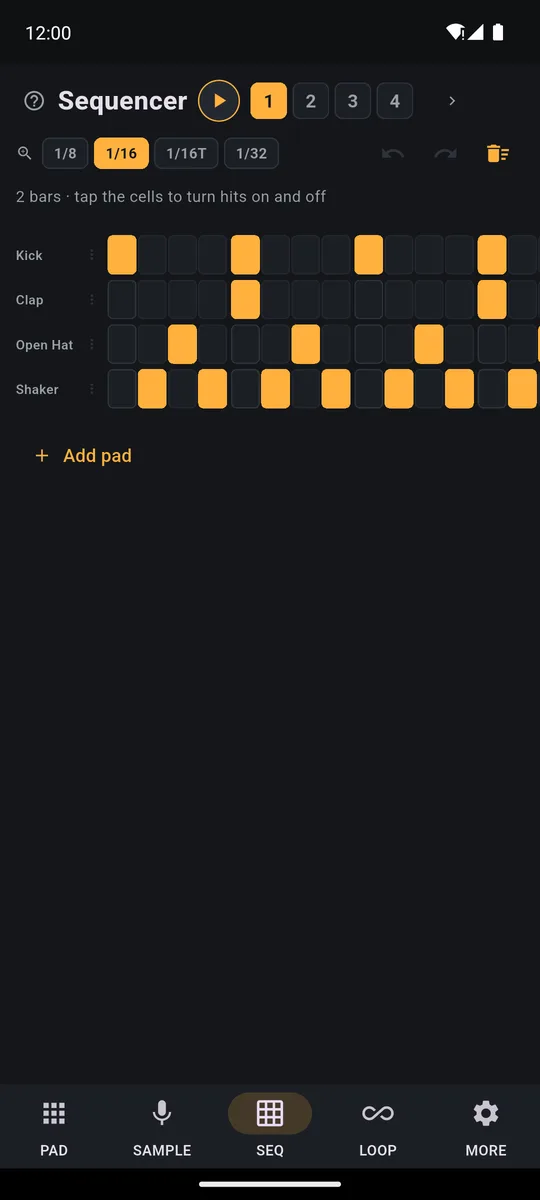
Every row is a sound, every column a moment in the bar. A lit cell is a hit, and the fuller it is, the louder the hit. Tap to switch on or off; drag a finger along a row to light up several in one go. You see one bar at a time. The title says which one (“Bar 1 of 4”), the ‹ › arrows switch bars, and the bar that’s playing has an orange border.
The SEQ always opens on 1/16, which is 16 cells per bar. In ⋯ → Cells you can see it wider (1/8, 1/8 triplets) or finer (1/32, 1/16 triplets). This only changes the view; the sound stays the same.
Track 1 ▾ and ↶ ↷ at the top, the On/off, Velocity, Ratchet and Edit modes, the strip of bars and + Add a sound under the grid.
Different bars on every track
The length isn’t one number for the whole song. With Bars: 4 ▾ you pick 1, 2, 4, 8 or 16 for the track you’re looking at: a 1-bar drum loop can run under a 4-bar bass and an 8-bar melody, and the song never seems to repeat exactly.
- Shortening? Hits beyond the new loop aren’t lost: they stay hidden, grey in the strip. Tap a grey bar, or lengthen the loop, and they’re back.
- Lengthening? The new bars are empty. Double copies the loop after itself (4 to 8) and warns you if it would cover hidden hits.
- Empty track? Choose its length first.
Notes: from beats to melodies
A sound “with notes” can have a different note in every cell. Plugin instruments (piano, strings…) always have them; for any other sound tap its name and choose 🎹 Play with notes: yes.
- Tap an empty cell: it lights up with the last note you chose and the mini keyboard appears under the grid.
- Press a key: the cell takes that note, and the next cells of that sound start from there.
- ▼ Oct. 4 ▲ changes octave, ✕ closes the mini keyboard.
Striped keys are out of the scale, but you can still use them. To change the note of a cell that’s already lit, press and hold it. In the sound’s menu, Move all the notes of the row raises or lowers the whole melody by a note or an octave.
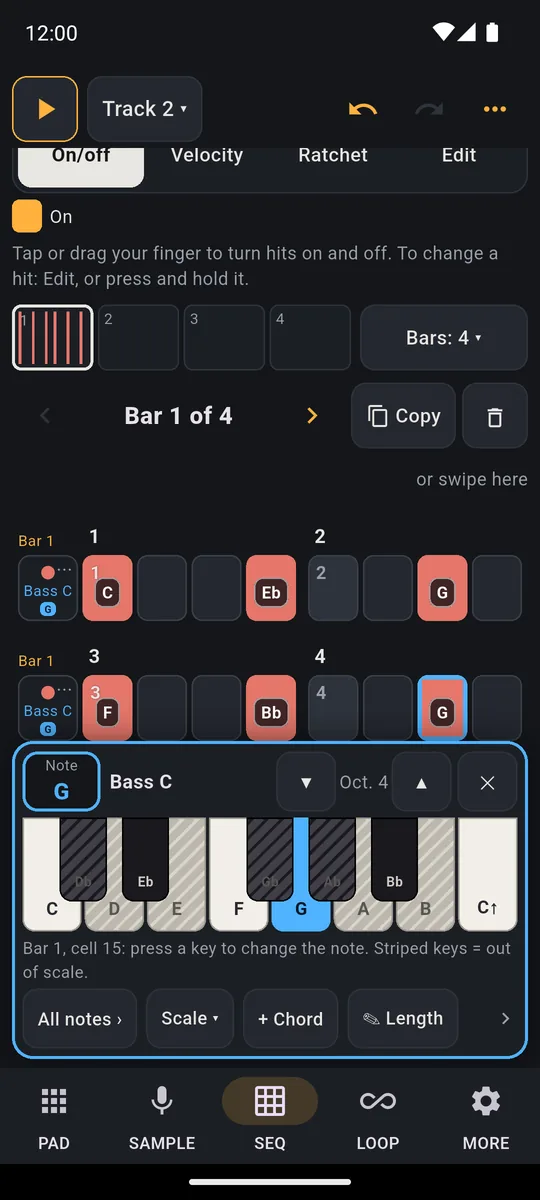
A bass written note by note: the mini keyboard under the grid with Oct., Scale and + Chord.
Chords: several notes in one cell
On the mini keyboard tap + Chord: now each key adds or removes a note in the same cell. Full chord adds 3 notes in one go. With ✎ Length you choose how long the note lasts: Whole (the default) plays the whole recorded sound, while 1, 2, 4 or 8 cells stop it earlier. Length is available on rows with notes and on “While held” pads; a note never lasts longer than the recorded sound.
To see a whole melody, open All notes ›: each row is a note of the scale, from the tonic up, and several notes in the same column are a chord. On a phone you see half a bar at a time (Beats 1 and 2, Beats 3 and 4); ✓ Done goes back to the sounds.
Which scale do I use?
The scale decides which notes sound good together. It opens from ⋯ → Scale and notes or from Scale ▾ on the mini keyboard:
- With ◄ ► pick the tonic, the note the scale starts from.
- Pick one of the 4 scales: All notes, Minor pentatonic, Major or Minor. New projects start on Minor pentatonic in C.
- Pick the note names: Do Re Mi or C D E.
It’s the same scale as the pads’ Keyboard, covered in the guide to playing in key. Notes you already placed don’t change.
Ready-made patterns and random rows
Add a drum pattern has 5 genres: Pop and rock, Hip hop, House, Reggaeton and Trap. After you pick a genre, the app shows who plays what: which sound is the kick, which is the snare or clap, and which is the hi-hat. Tap a sound to change it, then confirm with Add the … pattern. Tempo and swing don’t change, and one ↶ removes the whole pattern.
For a single row, tap its name: there are 13 ready-made patterns (from Every beat to Clave, with Half time, Tresillo and Trap hi-hat in between), the best ones for that sound on top, and 🎲 Random row for a new idea on every tap. For accents, ghost notes and swing, the drum machine page goes into detail.
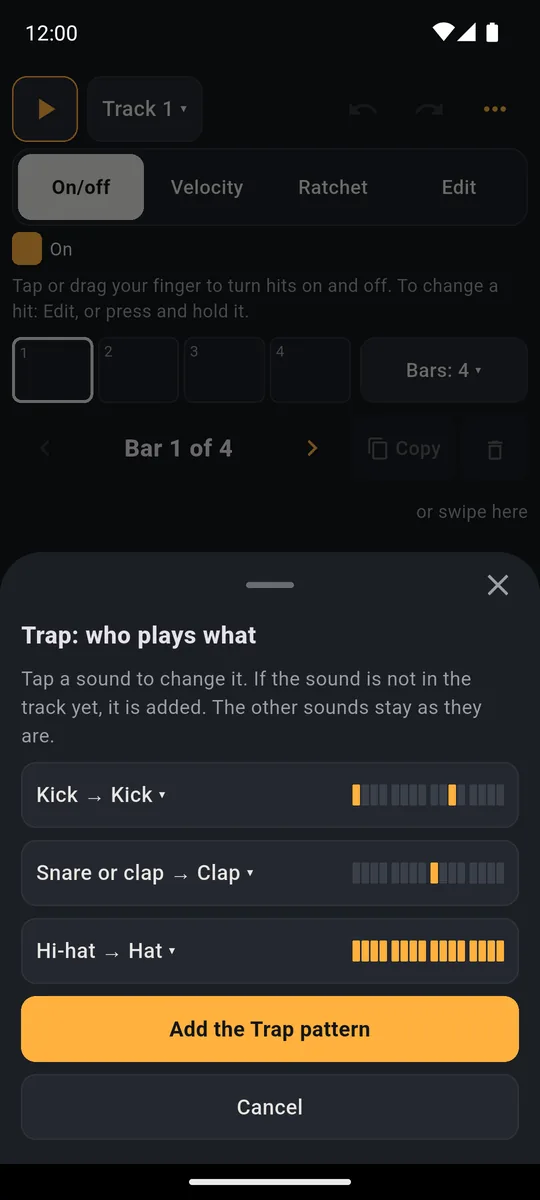
After the genre, the kick, snare or clap and hi-hat picked by the app: change them with a tap and add the pattern.
Copy, paste, move
- Tap Copy next to the bar’s title and choose the whole bar or a single sound.
- Tap a bar in the strip: the copy goes there. You can paste several times, into another track too.
- Tap Done when you’re finished.
The trash can next to Copy clears the bar or a single sound, or removes the bar, and the ones after it move up. In ⋯ you’ll find Copy this whole track to: another track, Move all the rows together and Clear the track. To move a single row, tap its name and choose Move the whole row: ◄ One cell or One cell ►.
Follow, ↶ and ↷
Follow (under the grid) takes the page to where the loop is playing, vertically too, but never while you’re touching the grid. If you change bars by hand, it switches off: you read “Follow off: tap here” and one tap turns it back on.
↶ and ↷ at the top, next to Track 1 ▾, undo and redo up to 50 changes: hits, notes, lengths, ratchets, mutes, bars, copies. If the change was in another bar or track, they take you there.
Writing with the keys of a MIDI keyboard
With a controller connected, 🎹 Write with keys appears: the cell with the yellow border takes the note you press and the cursor moves to the next. Several keys together make a chord, and the sustain pedal on its own leaves a rest. In Controllers in the SEQ you choose how many cells to move on after a note, and what a key does on a full cell (Replaces or Chord: adds).
The controller’s pads can pick sounds (Pick sounds) or turn on steps (Turn on steps), and Learn the pads recognizes them as you press them in order, from 1 up. The Akai MPK Mini and the MPD218 are recognized by name in the SEQ. For the connection itself, see the page on the MIDI controller, and for ready-made maps the guide to MPD218, Launchpad and MPK Mini.
Good to know
- Free: in the SEQ you add hits, notes, chords and ready-made patterns on tracks 1 and 2, with the pads of banks A and B. Elsewhere you see “This is part of full PadLoop”, open during the 7-day trial. Removing hits or changing their strength is always free.
- There’s no REC in the SEQ. You record from the PAD tab, with a foot switch or from a controller; recorded hits become lit cells.
- A row’s sound can’t be changed from the SEQ. You change it from the pad, with the pencil and Change.
- Not in the grid: microphone tracks, which are audio, and In loop pads. While a track is recording, its grid is locked, but you can still edit the other tracks.
Write a chord loop in Minor pentatonic and let it run under your voice: the 7-day trial also opens tracks beyond the second and the instrument plugins.On iPhone: in MORE tap the top row, then Start the free trial. It costs nothing and does not renew.
Get PadLoopStep sequencer questions
What is a step sequencer?
A grid where every row is a sound and every column is a moment in the loop. Light up a cell and the hit or note plays right there. In PadLoop it’s the SEQ tab: with 16 cells per bar you write beats, bass lines, melodies and chords.
Is there a free step sequencer app for Android?
PadLoop is free to download on Android and iPhone. In the SEQ you add hits, notes, chords and ready-made patterns for free on tracks 1 and 2, with the pads of banks A and B. The other tracks and banks C to H come with full PadLoop and are open during the 7-day trial.
Can I write melodies and chords, not just drums?
Yes. A sound with notes has a different note in every cell, picked from the mini keyboard under the grid. With + Chord each key adds or removes a note in the same cell, and Full chord drops in 3 notes together.
How long can a loop be?
From 1 to 16 bars, and every track has its own length. If you shorten a loop, the hits after it stay hidden and come back when you lengthen it again.
Can I record live inside the SEQ?
There’s no REC button in the SEQ: you record from the PAD tab, with a foot switch or from a MIDI controller. Recorded hits become lit cells that you then move or fix in the SEQ.
Can I use a MIDI keyboard to write notes?
Yes. With a controller connected, Write with keys appears: each key writes its note into the cell with the yellow border and the cursor moves on, and several keys together make a chord. The sustain pedal on its own leaves a rest.
How is this different from the drum machine page?
The drum machine page is about drums and beats. This one covers the whole SEQ: notes, melodies, chords, scales, different lengths per track, copy and paste.
How do I change the sound of a row?
In the SEQ a row is a pad and its sound can’t be changed from there. You change it from the PAD tab, with the pencil on the pad and Change. What you can do is add more rows to the grid with + Add a sound.
Last updated: